
'editor.initFocus' 설정으로 에디터 첫 로딩후 안쪽으로 포커스 지정 여부를 설정합니다. (기본값 = true)
{
	'editor.initFocus': true
} |
브라우저에서 접근가능한 특정 위치에 template 파일을 등록하고 아래와 같이 설정하면 template기능을 사용 할 수 있습니다.
{
	'editor.template': [
	{
		'category': 'template_category1',
		'label': 'Report',
		'items': [
		{
			'name': 'Research Report',
			'path': '/resource/template/template1.html'
		},
		{
			'name': 'Sales Report',
			'path': '/resource/template/template2.html'
		}]
	}]

} |
사용자정의 문단스타일을 사용하려면 아래와 같이 환경설정을 해야 합니다.
{
	'editor.customStyle.paragraph': [
    {
      'name': 'Gray',
      'style': {
        'color': {
          'r': 170,
          'g': 170,
          'b': 170
        }
      }
    }
  ],
} |
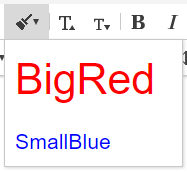
사용자 정의 런스타일은 아래와 같이 설정합니다.
{
	'editor.customStyle.textRun': [
    {
      'name': 'BigRed',
      'style': {
        'fontSize': 32,
        'color': {
          'r': 255,
          'g': 0,
          'b': 0
        }
      }
    },
    {
      'name': 'SmallBlue',
      'style': {
        'fontSize': 16,
        'color': {
          'r': 0,
          'g': 0,
          'b': 255
        }
      }
    }
  ]
} |
'editor.defaultStyle': 지정하고싶은 모델 Element Type에 기본 속성을 지정할 수 있습니다.
'editor.defaultStyle': {
    'Body': 'font-family: Arial, Helvetica, sans-serif; font-size: 11pt; line-height: 1.2;',
    'Paragraph': '',
    'TextRun': '',
    'Div': '',
    'Image': '',
    'Video': '',
    'List': '',
    'ListItem': '',
    'Quote': '',
    'Table': '',
    'TableRow': '',
    'TableCell': '',
    'HorizontalLine': '',
    'Iframe': ''
}, |
자동저장 사용여부 및 저장주기는 아래와 같이 설정가능합니다.
단위: ms (기본값 = 60000)
{
	'editor.autoSave': true,
	'editor.autoSave.period': 60000,
} |
'editor.contentFilter.allowIFrame' 설정을 false로 설정하면 사용자 iframe tag 삽입을 제한하여 자동 태그 제거합니다.
{
	'editor.contentFilter.allowIFrame': false
} |
'editor.contentFilter.allowIScript' 설정을 false로 설정하면 사용자 script tag 삽입을 제한하여 자동 태그 제거합니다.
{
	'editor.contentFilter.allowScript': false
} |
'editor.unloadMessage' 설정을 true로 설정하면 웹페이지가 unload 되었을 때 '페이지를 나가시겠습니까' 확인메세지가 보여집니다. (기본값 = false)
{
	'editor.unloadMessage': false
} |
'editor.import.api', 'editor.upload.image.api', 'editor.upload.video.api', 'editor.upload.file.api' 키를 사용하여 업로드 및 임포트 API를 설정합니다.
이 때 서버쪽 API (URL)는 Back-end 구현에 따라 변경해야 합니다. 자세한 사항은 서버연동 매뉴얼을 참고합니다.
{
	'editor.import.maxSize': 10485760,
	'editor.import.api': '/importDoc',
	'editor.import.param': {},
	'editor.upload.maxSize': 3145728,
	'editor.upload.image.api': '/uploadImage',
	'editor.upload.image.param': {},
	'editor.upload.video.api': '/uploadVideo',
	'editor.upload.video.param': {},
	'editor.upload.file.api': '/uploadFile',
	'editor.upload.file.param': {},
} |
'editor.import.alwaysOverwriting' 옵션을 설정하여 이어넣기/새로넣기 확인 메세지 없이 항상 새로넣도록 설정합니다. (기본값 = false)
{
	'editor.import.alwaysOverwriting': false
} |
| editor.import.alwaysOverwriting: true | editor.import.alwaysOverwriting: false (기본) |
|---|---|
|
|
'editor.import.fileFiledName', 'editor.upload.image.fileFiledName', 'editor.upload.video.fileFiledName', 'editor.upload.file.fileFiledName' 키를 사용하여 업로드 및 임포트시 formData에 fieldName을 설정 합니다.
{
    'editor.import.fileFieldName': 'file',
    'editor.upload.image.fileFieldName': 'file',
    'editor.upload.video.fileFieldName': 'file',
    'editor.upload.file.fileFieldName': 'file'
} |
'editor.upload.image.extensions', 'editor.upload.video.extensions', 'editor.upload.file.extensions' 키를 사용해 업로드 가능 확장자를 설정할 수 있습니다.
{
	'editor.upload.image.extensions': ['jpg', 'gif', 'png', 'jpeg'],
	'editor.upload.video.extensions': ['mp4', 'ogg', 'webm'],
	'editor.upload.file.extensions': ['bmp', 'css', 'csv', 'diff', 'doc',
									'docx', 'eof', 'gif', 'jpeg', 'jpg',
									'json', 'mp3', 'mp4', 'm4a', 'odp',
									'ods', 'odt', 'ogg', 'otf', 'patch',
									'pdf', 'png', 'ppt', 'pptx', 'rtf',
									'svg', 'swf', 'textile', 'tif', 'tiff',
									'ttf', 'txt', 'wav', 'webm', 'woff',
									'xls', 'xlsx', 'xml', 'md', 'vtt',
									'hwp', 'hml', 'html']
} |
'editor.upload.image.base64' 설정으로 이미지 업로드 시 base64를 사용할 것인지를 설정합니다. (기본값 = false)
true로 설정이 이미지 업로드 후 base64로 이미지가 표현됩니다.
{
	'editor.upload.image.base64': false,
} |
const synapEditorConfig = {
	//...
	/**
	 * 에디터 자동링크 사용 여부를 설정합니다.
	 */
	'editor.autoLink': true,
	//...
}; |

